MusicOne lives in the cloud. Your automation software lives on a computer at the station. CloudSync is the piece that connects the two.
It's a small application that runs on your local machine. When you schedule a day in MusicOne, CloudSync picks up the log and syncs it to a folder your automation software reads from. You schedule in the browser, your automation software gets the file. That's the job.
What you need before you start
CloudSync needs to be installed on the computer that runs your automation software. Or a computer that has access to the folder your automation software reads logs from. It doesn't need to run constantly, but it does need to be running when you want logs to sync.
You'll also need to be logged in to MusicOne in a browser on any computer to generate the connection code.
Here is a one-minute video showing how to install it:
Download
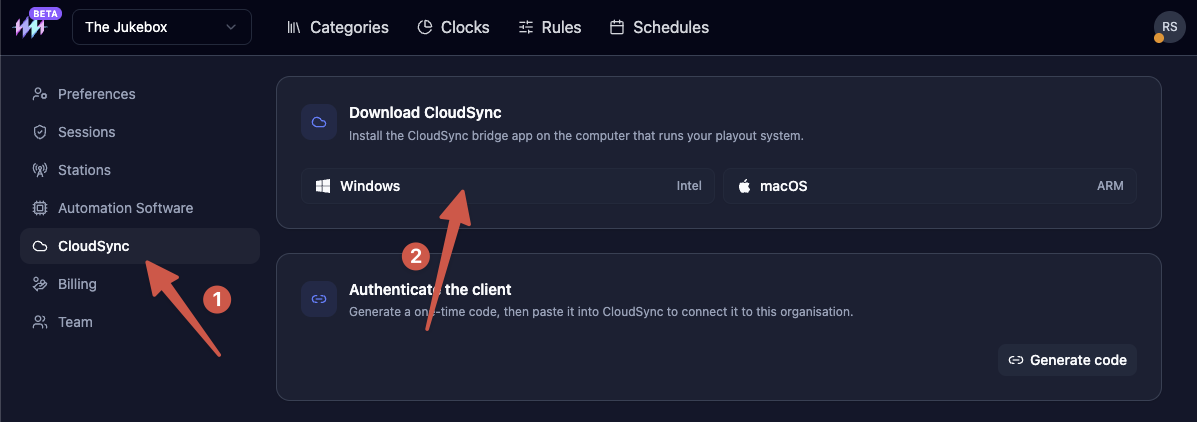
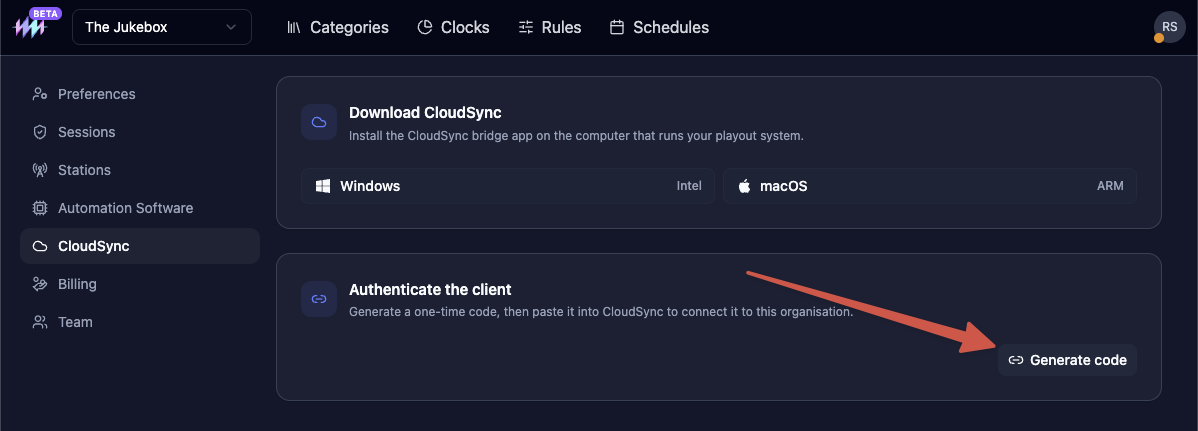
Go to Preferences in MusicOne and click CloudSync in the sidebar. You'll see two download buttons: Windows and macOS.
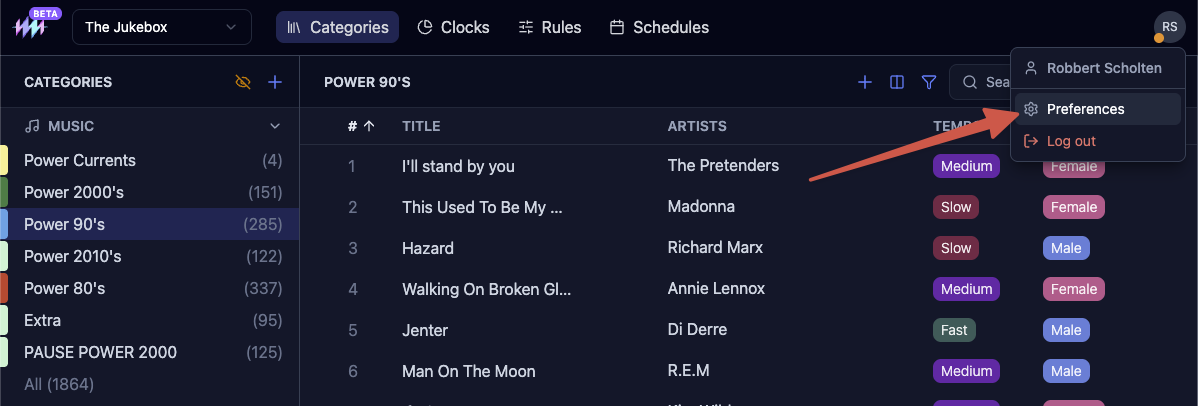
Click the button for your platform, for most this will be Windows. This will download the installer.
Install
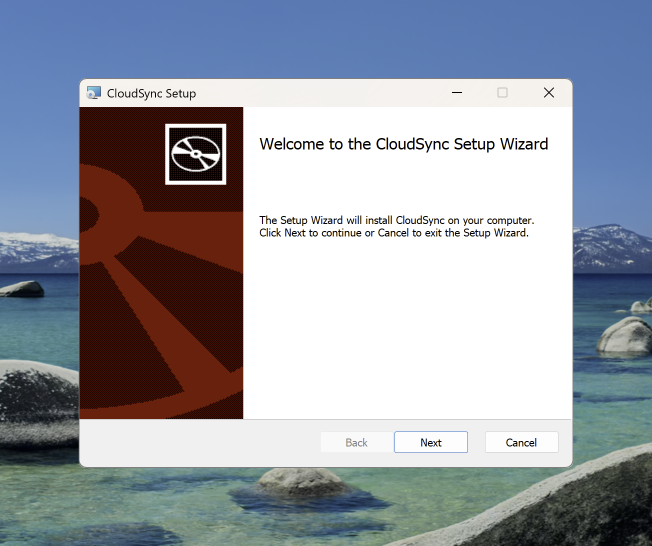
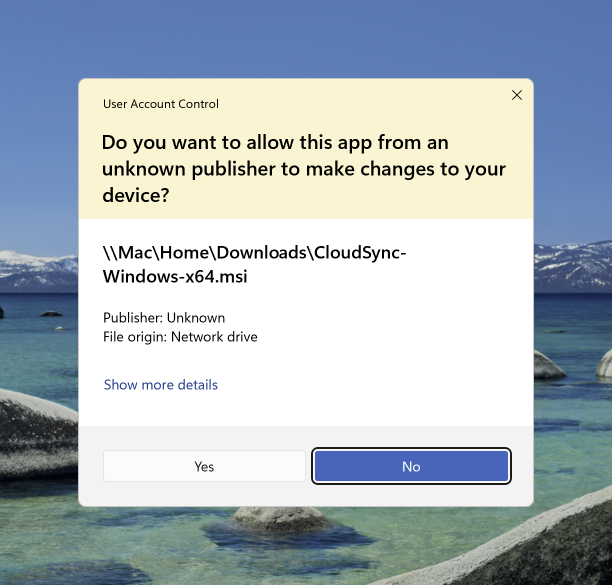
Find it in your downloads folder and open it to run the installer. Click next, choose the installation folder and start the installation. A warning appears that the app is from an unknown publisher, click Yes to continue the installation. It now installs and you can click ‘Finish’.
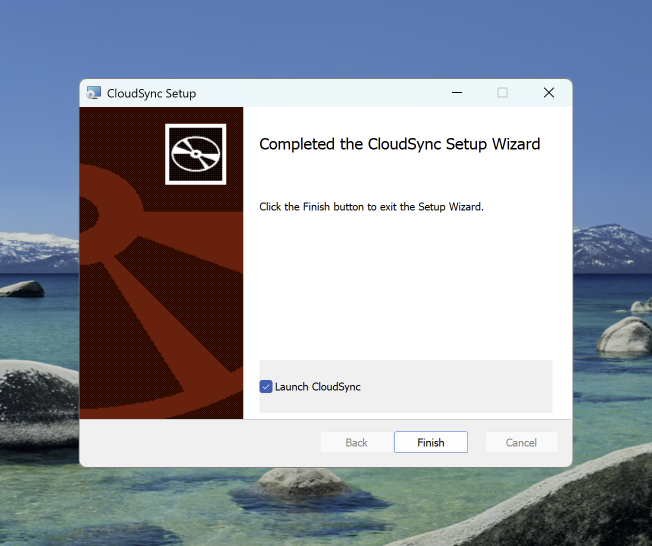
Connect CloudSync to your organisation
Once CloudSync is installed it should automatically open on your local machine. It ask you to input a code to pair it with your MusicOne account.
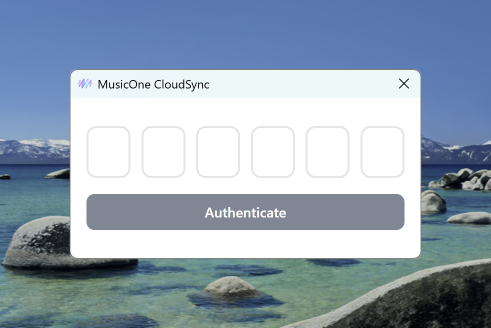
To grab this code, you need to go back to Preferences > CloudSync in MusicOne Cloud, click Generate code. This creates a one-time authentication code that's automatically copied to your clipboard.
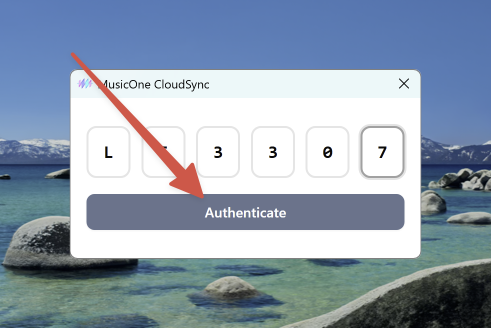
Open CloudSync on your local machine, paste the code and click ‘Authenticate’. The connection completes in a few seconds.
If someone else is setting it up
Not the person who manages the playout computer? No problem. During onboarding, or from Preferences, there's an option to email the setup instructions and a connection code to a recipient: your IT contact, your engineer, whoever handles the local machine. They get everything they need to install and connect CloudSync without needing access to your MusicOne account.